Author: Aaron VanSledright

  • Amazon S3 Backup from FreeNAS

    Amazon S3 Backup from FreeNAS

    I was chatting with my Dad about storage for his documents. He mentioned wanting to store them on my home NAS. I chuckled and stated that I would just push them up to the cloud because it would be cheaper and more reliable. When I got home that day I thought to myself how I would actually complete this task.

    There are plenty of obvious tools to accomplish offsite backup. I want to push all of my home videos and pictures to an S3 bucket in my AWS environment. I could:

    1. Mount the S3 bucket using the drivers provided by AWS and then RSYNC the data across on a cron job.
    2. Utilize a FreeNAS plugin to drive the backup
    3. Build my own custom solution to the problem and re-invent the wheel!

    It is clear the choice is going to be 3.

    With the help of the Internet and I put together a simple Python script that will backup my data. I can then run this on a cron job to upload the files periodically. OR! I could Dockerize the script and then run it as a container! Queue more overkill.

    The result is something complicated for a simple backup task. But I like it and it works for my environments. One of the most important things is that I can point the script at one directory that houses many Symlinks to other directories so I only have to manage one backup point.

    Take a look at the GitHub link below and let me know your thoughts!

    [GitHub]

  • Setting Up AWS Chatbot

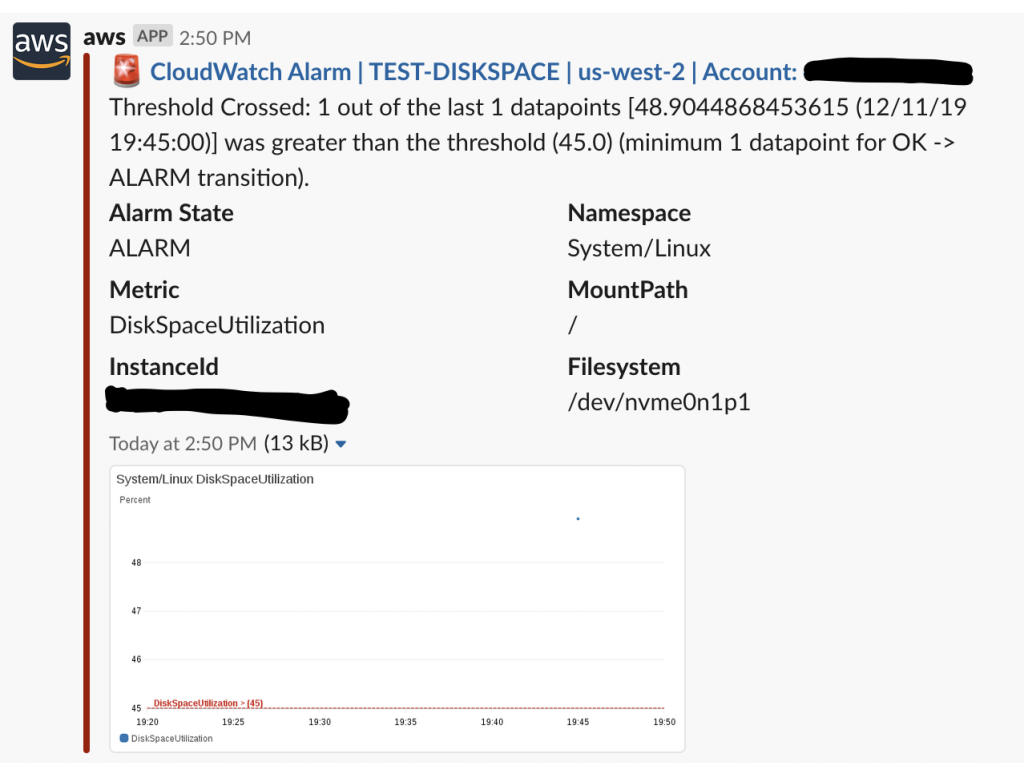
    Amazon Web Services pushed their new Chatbot into beta recently. This simple bot will allow you to get alerts and notifications sent to either Slack or Amazon Chime. Because I use Slack for alerting I thought this would be a great tool. Previously I utilized Marbot to accommodate a similar function. Marbot is a great product for teams as it allows a user to acknowledge or pass an incident. I am a team of one so this feature is nice but ultimately not useful for me at this time.

    Let’s get started!

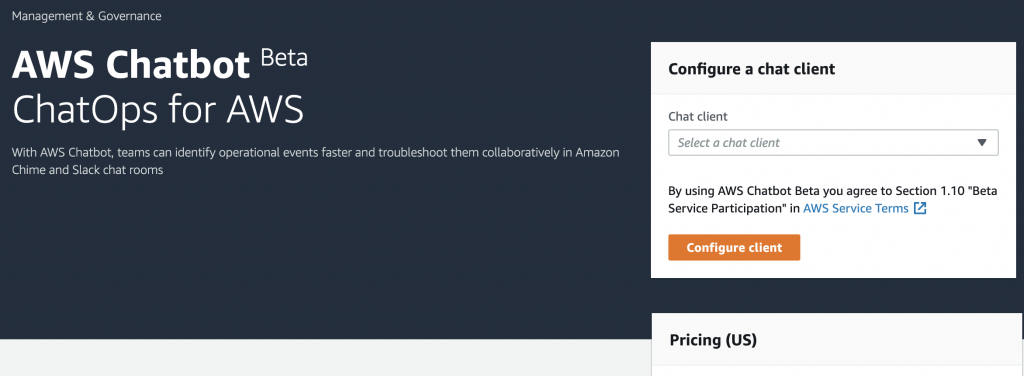
    Navigate to the new AWS Chatbot in the console

    On the right-hand side click the drop-down menu to choose your chat client. I am going to choose Slack because that is what I use. I assume the process would be the same for Chime. You will be prompted by Slack to authorize the application. Go ahead and hit “Install”.

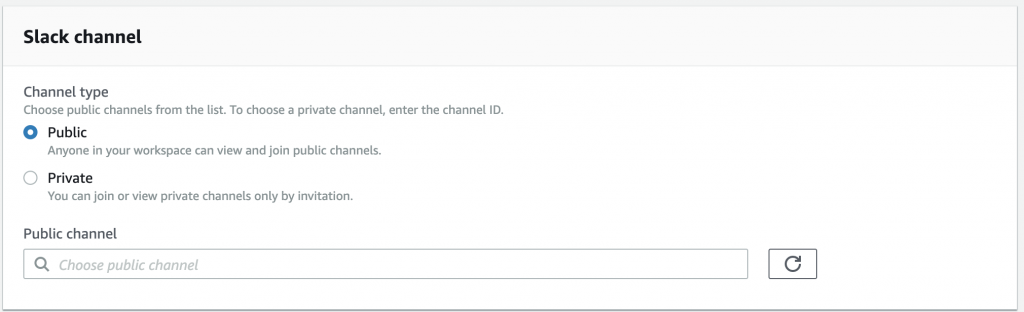
    On the next screen, we will get to our configuration options. The first being to choose our Slack Channel:

    I chose the public channel that I already have created for Marbot #aws-alerts. You can do what you want here. Maybe you want a private channel so only you can see alerts for your development environment!

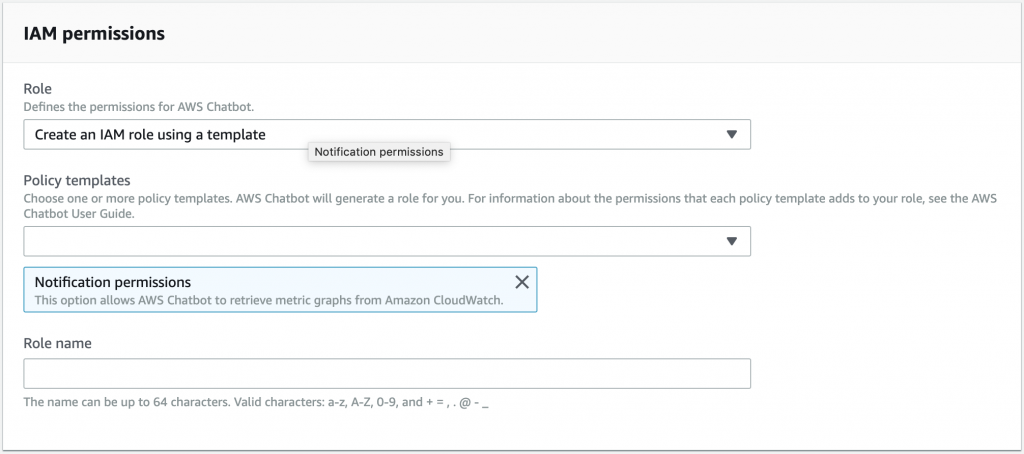
    The next section is IAM Permissions

    I chose to create an IAM role using a template and utilized the predefined template and just made up a role name called “aws-chatbot-alerts”.

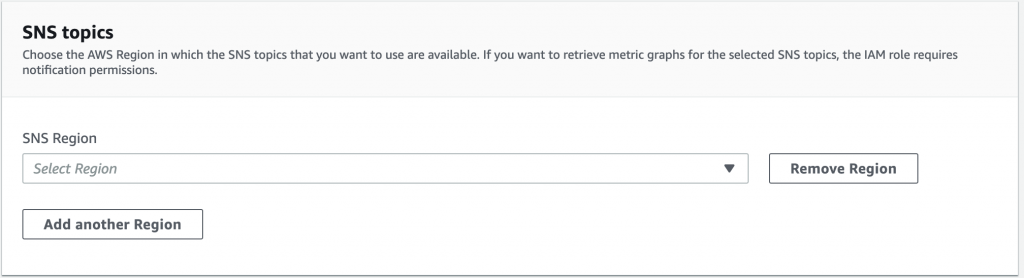
    The last configuration options is for SNS topics

    You can have your bot subscribe to SNS channels to receive notifications to publish there as well. I don’t currently use any so I skipped this section but, this could be super useful in the future! Look for future posts about this idea!

    I will update this post soon with how to create the chatbot using the CLI and/or CloudFormation

  • Copying Files To & From an AWS S3 Bucket

    Copying Files To & From an AWS S3 Bucket

    Recently I needed to download an entire bucket worth of data for an offsite backup. Easy right? Go to the Amazon Web Services Console and hit download! WRONG.

    You can download individual files but not an entire bucket. Seems silly. Luckily there is an easy way to do it via the Amazon Web Services CLI. Enter simple commands:

    $ aws s3 cp s3://YOUR_BUCKET/ /LOCAL_DIRECTORY --recursive

    Let’s dissect this just a little bit. The first couple of options in the command should be pretty self-explanatory. We are going to use the AWS CLI, we chose S3 as our service and then the ‘cp’ means we are going to copy. Now, there are a bunch of other options that you can do here. I suggest taking a look at the documentation here to learn more. After that, you simply add in your bucket name, note the trailing forward slash, then where you want to put your files on your local machine. Finally, I added the --recursive flag so that it would read through all the lower directories.

    Ultimately a very simple solution to transfer some data quickly! The AWS S3 CLI functions very similarly to that of your standard directory functions. So, feel free to poke around and see what it can do!

  • AWS CLI For CPU Credit Balance

    AWS CLI For CPU Credit Balance

    Here is how you create a CloudWatch alarm to monitor CPU Credit Balances less than a certain amount:

    aws cloudwatch put-metric-alarm --alarm-name YOUR NAME HERE--alarm-description "Alarm when CPU Credits is below 200" --metric-name CPUCreditBalance --namespace AWS/EC2 --statistic Average --period 300 --threshold 200 --comparison-operator LessThanThreshold --dimensions Name=InstanceId,Value=INSTANCEIDHERE --evaluation-periods 2 --alarm-actions ARN:YOURSNSTOPIC

    CloudFormation Template:
    https://github.com/avansledright/CloudFormation-CPU-CREDIT-BALANCE

  • Lessons Learned from Migrating 17TB of Data

    Lessons Learned from Migrating 17TB of Data

    I finally pulled the trigger on some new hard drives for my home NAS. I am migrating from a 5U Server down two a small desktop size NAS. Ultimately this removes the need for my 42U standing rack.

    I did this transfer a year or so ago when I did a full rebuild of my server but forgot to take any notes on the processes that I used. Instant regret. I remembered utilizing Rsync to do the actual transfer and I assumed that I mounted both the existing NAS to an NFS share and the new NAS through NFS. Both these mounts would reside inside a throwaway virtual machine on my application server.

    I used the following Rsync command to start.

    rsync --ignore-existing -ahzrvvv --progress {Source} {Destination}

    To break this down a little bit:

    –ignore-existing: This will ignore any existing files that copy over

    -a: Archive flag. This preserves my data structure

    -h: Human readable. If this flag exists for a command, use it. It makes things much easier to use.

    -z: Compression. There are a bunch of different compression options for Rsync. This one does enough for me.

    -r: This makes Rsync copy files recursively through the directories

    -vvv: I put triple verbose on because I was having so many issues.

    –progress: This will show the number of files and the progress of the file that is currently being copied. Especially useful when copying large files.

    Now, my command changed over time but ultimately this is what I ended on. My source and destination were set to the respective NFS mounts and I hit [enter] to start the transfer. I left it running on the console of my Virtual Machine and walked away after I saw a handful of successful transfers. Assuming everything was going fine I went about my day as 17TB is going to take a while.

    A few hours later I decided to check in on my transfer and saw that it had gotten stuck on a file after only 37KB of data transfer! Frustrated, I restarted the process. Only to see the same results later on.

    After updating, downgrading, and modifying my command structure I came to the realization that there must be an issue with transferring between to NFS shares.

    I am still researching why this happens but to me, it seems as though when the transfer starts the files are brought into a buffer somewhere within the Linux filesystem which gets maxed out causing the file transfer to stall. Almost as if the buffer can’t send the new files fast enough.

    When I switched the transfer to utilize SSH instead of NFS to NFS the transfer completed successfully.

    If someone has some information regarding how this works I would love to learn more.

  • Encrypt an Existing EBS Volume

    Encrypt an Existing EBS Volume

    Say you have an existing EBS volume on Amazon Web Services that you wanted to encrypt. How would you do that? The following guide shows you how to do so via the AWS Management Console.

    1. Login to your console.
    2. Navigate to the the EBS Volume you would like to encrypt

    3. Right click on your colume and create a snapshot.

    4. I always give my snapshots descriptions. But we are going to end up deleting this one.

    5. Make a copy of the snapshot you created in step 4.

    6. In the copy settings you simply need to choose to encrypt the volume. You can specify the encryption keys to use. For this guide we will just use the standard EBS encryption key.

    Once you have your new encrypted snapshot you can easily create a volume from that snapshot and then re-attach it to your instance!

  • Fixing Unadoptable Unifi Devices

    Fixing Unadoptable Unifi Devices

    I wrote an article about this before that utilizes Robo3T. I figured I should also have a version for those of you who utilize SSH and Command Line.

    DISCLAIMER: I am not responsible if you break anything. If you need help let me know before you create a big mess!

    EDIT: I wrote a Python Script that can handle all of this for you just enter in your MAC address. Grab it here: https://github.com/avansledright/unifideletedevice

    SSH into your Unifi Controller utilizing whatever means you typically use.

    Connect to MongoDB by issuing the command:
    mongo --port 27117

    If you are utilizing a different port then change the port flag.

    Once connected select the Unifi Database:

    use ace

    Then you can utilize the following queries to preform actions:

    Find device:
    db.device.find({ 'mac' : 'XX:XX:XX:XX:XX:XX' })
    Remove device:
    db.device.remove({ 'mac' : 'XX:XX:XX:XX:XX:XX' })

    Should you want to find what site a device is registered to you can utilize the “Find Device” query from above. In the JSON output locate the Site ID. Then utilize the query below and replace the X’s with your found site ID. The result should be a nice JSON output with the name of the site.

    Find site query:
    db.site.find(ObjectId('XXXXXX'))

  • Counting Web Requests

    I manage a ton of web servers. Occasionally I see attempts at flooding the servers with traffic. Typically in a malicious way. Generally these are just small attacks and nothing to write home about. But, I wanted a way see how many times a server was getting a request from a specific IP address.

    Obviously this would be very challenging to accomplish by just looking at the logs. So, I put together a small Linux command that will read and count Apache requests based on unique IP addresses.

    cat access.* | awk ‘{ print $1 }’ | sort | uniq -c | sort -n

    Try it out and let me know what you think!

  • AWS Backup

    AWS Backup

    Recently Amazon Web Services announced its new service called AWS Backup. The goal is to create a simple, automated backup solution for resources within the AWS Cloud.

    There have been plenty of other solutions out there for backups but most are quite costly. Here is a look at the pricing for the AWS Backup solution:

    AWS Backup Pricing Snapshot

    The pricing for an EBS Snapshot is the same as the pricing for manual snapshots so it is quite a compelling argument to set this up.

    Let’s look at a quick example of how to setup a simple recurring EBS Snapshot. In this example I have a Linux EC2 instance with a single EBS volume attached to it.

    Login in to your AWS console and search for “Backup” in the services menu. You will see AWS Backup.

    AWS Console Menu – AWS Backup

    Once you are in the console for AWS Backup, choose “Manage Backup Plans”

    Manage AWS Backup Plans

    To get the full experience of AWS Backups I chose to make my own plan. You could also choose to use one of their existing plans.

    AWS Backup Options

    Give your backup plan a name. Something so you can remember what the plan is going to be doing. For my example I named my plan “7Day-Snapshot”. My plan will take a snapshot of the EBS volume and store it for 7 days before discarding it.

    Inside of your plan you are going to create a rule. In the example we only need one rule.


    I filled the fields out as follows:

    Rule Name: 7DayRetention

    Frequency: Daily

    Backup Window: Use Backup Window Defaults

    Transition to Cold Storage: Never

    Expire: 7 Days

    Backup Vault: Default – You can create different vaults with various options. I would suggest this if you are wanting to separate your projects or customers.

    Tags: You can add various tags but I didn’t set any up for this example.

    Once you have all the options filled out hit “Create Plan” to save your new plan. You can now assign resources to your plan which is how you actually choose what is going to be backed up!

    In Resource Assignments click “Assign resources”

    You will need to define a few things in the next step which is choosing your resources.

    Resource assignment name: I used the hostname of my Linux Server

    IAM Role: I used default

    Assign Resources: This is where you can get creative. One thing I am going to setup going forward is that every EBS volume with Key: Backup and Tag: Yes will fit this resource. Then I don’t have to add each volume individually. Feel free to explore. What I did was to choose “Assign By” Resource ID. Then Resource Type of EBS Volume and then found my resource in the list.

    Hit Assign Resources when you are done.

    That’s it! You now have a backup plan that will take a snapshot of your EBS volume during each maintenance window every day. It will then store them for one week and then delete them.

    This service by AWS should solve a myriad of problems for many organizations.

    If you have questions feel free to reach out!

  • Fixing Unifi Controller Errors

    Recently I was working on a device that for the life of me I could not get to attach to my Unifi Controller. Repeatedly I would get

    used default key in INFORM_ERROR state, reject it!

    error on my server. The other error that I kept getting on the device itself was

    Decrypt Error

    when running the Inform Command.

    Quite frustrated I spent a lot of time removing and adding my SSL certificate thinking that had something to do with it. I was wrong.

    The real issue resides when someone deletes a whole site without removing the devices that are inside the site first. What happens is that the devices stay in the database and have a site associated with them that no longer exists. This results in me not being able to adopt them into a new site.

    So Let’s Fix It

    To resolve this issue we need to delete the device out of the controller by accessing the MongoDB that stores all of our information. While most of you are probably more fluent in writing Mongo queries and thus could do it from the command line I prefer to find a GUI solution so that I could understand what I am doing.

    Enter Robo 3T. This is a GUI connector for MongoDB.  Depending on your setup you will need to modify your connection type. I used SSH with my private key.

    Once connected you should see a list of your databases in the left column.

    The Unifi Database (unless you changed it) will be called ace. Go ahead and expand out Ace and then Collections to display all your sites information. You will see a tabled called “device”. This table stores all the specific information about our devices and how they are programmed.

    We now need to find our specific device so using the built in shell in Robo 3T run the following query replacing the X’s with your MAC Address.

    db.device.find({ 'mac' : 'XX:XX:XX:XX:XX:XX' })

    The MAC address string must be all lower case.

    NOTE: Please backup your database before you do any of the following!

    Once you find your device, verify that the MAC address does, in fact, match your device.

    Right click on the ObjectID block. Should look something like this:

    In the right click menu you can choose to Delete the document. This will permanently remove the device from your controllers database.

    Once you have deleted the Document run your Inform command again and it your device should populate into your controller like normal!

    If you have any questions let me know!